Managing Data Sheets
Data Sheets describe the shape of your experimental data. They define tables and columns with names, description and data types. The columns also define the form fields for recording data manually and importing from files.
Data Sheets of an Assay Model can be viewed and modified under the Data Sheets tab.
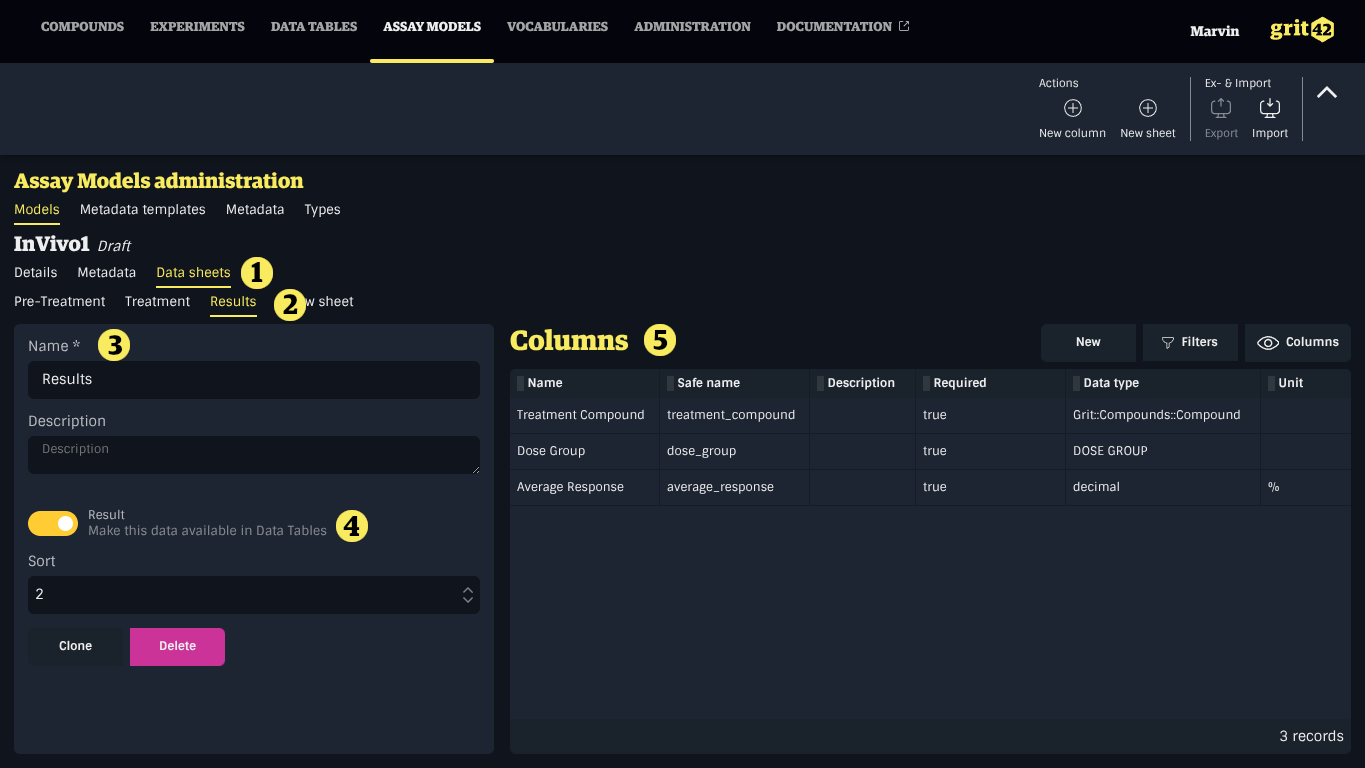
- Data Sheets tab
- The tabs for each Data Sheet of the Assay Model
- Name and description of the Data Sheet
- Whether this Data Sheet contains result data
- Toggle on to make this Data Sheet available in Data Tables
- The list of columns in this Data Sheet
Creating a Data Sheet
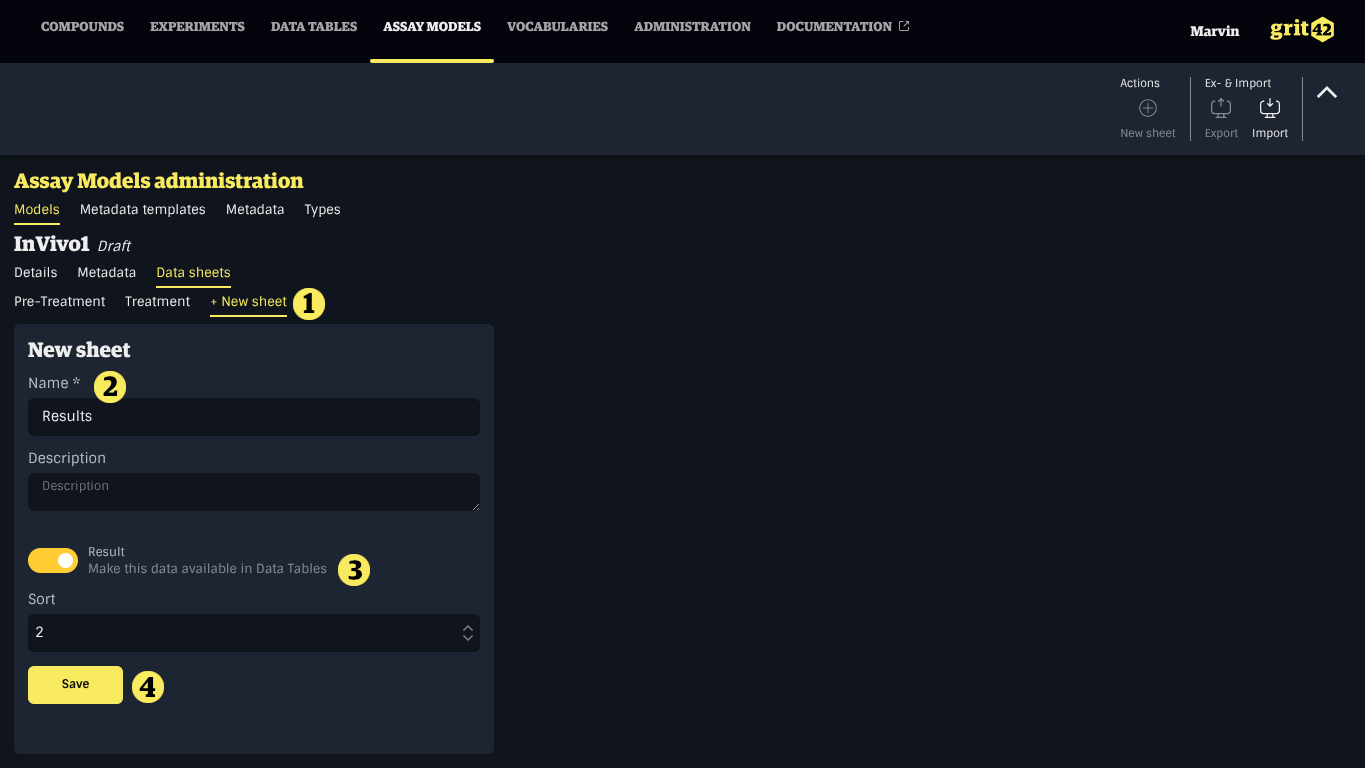
- Click the + New Sheet tab
- Provide a name and an optional description
- Toggle on to mark as Result
- Only Result Data Sheets are available in Data Tables
- Click Save
Creating a Data Sheet Column
On the appropriate Data Sheet, click the New button above the list of columns and:
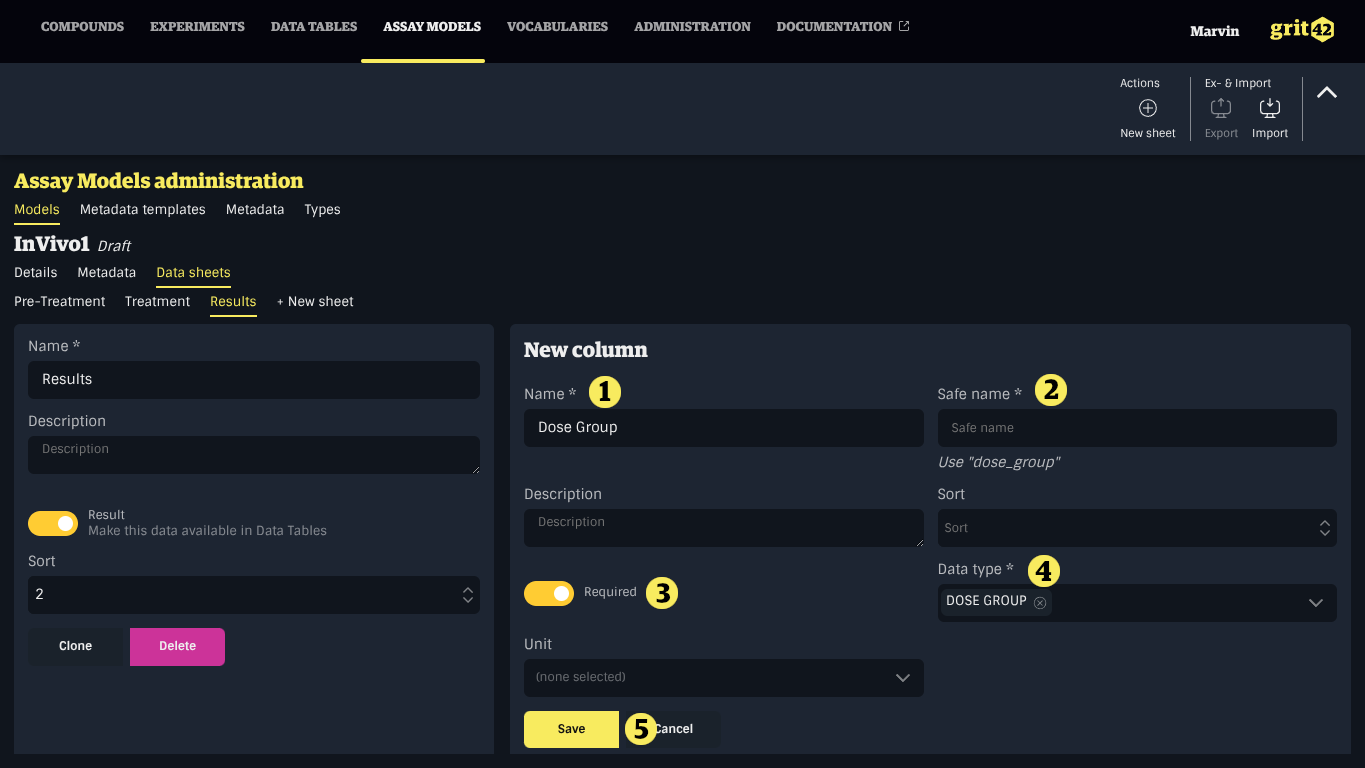
- Provide a name
- Provide a safe name
- The safe name is a machine friendly name for integration with external systems
- A suggestion will be provided based on the name, click to apply it
- Toggle on to mark this column as required
- Select the appropriate data type
- Click Save
Pay attention to the name and safe name given to the columns. Setting at least one of them to a value matching the header in your file will enable the system to preconfigure the mapping when importing data, which can save a lot of time on data set with a lot of columns.
There is a maximum of 250 columns per Data Sheet.
Creating data sheets manually can be a lengthy process. It is possible to create Data Sheets from files containing experimental data.