Authentication
grit supports authentication via email (or login) and password after a user has been activated. Users are activated by following the link in the email received upon registration by an Administrator.
Account activation links, password reset links, and two-factor authentication tokens are sent via email. An email service must be configured as described in the Installation Guide for these features to function correctly.
User Activation
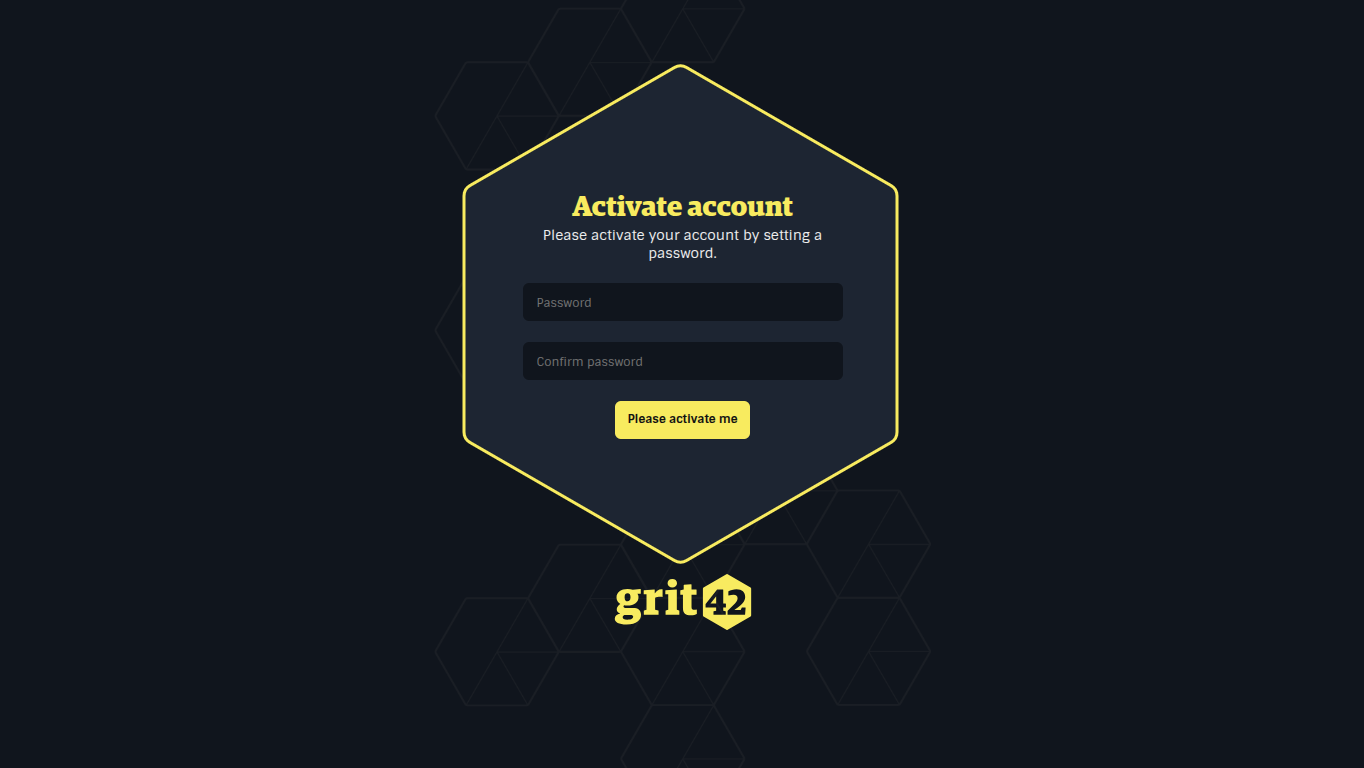
Before a user can log in to grit, their account must be activated by opening the link in the activation email in a web browser. In the browser, fill in the form with a password of your choice and click Please activate me. Once the account has been activated, the browser will be redirected to the application's main page.
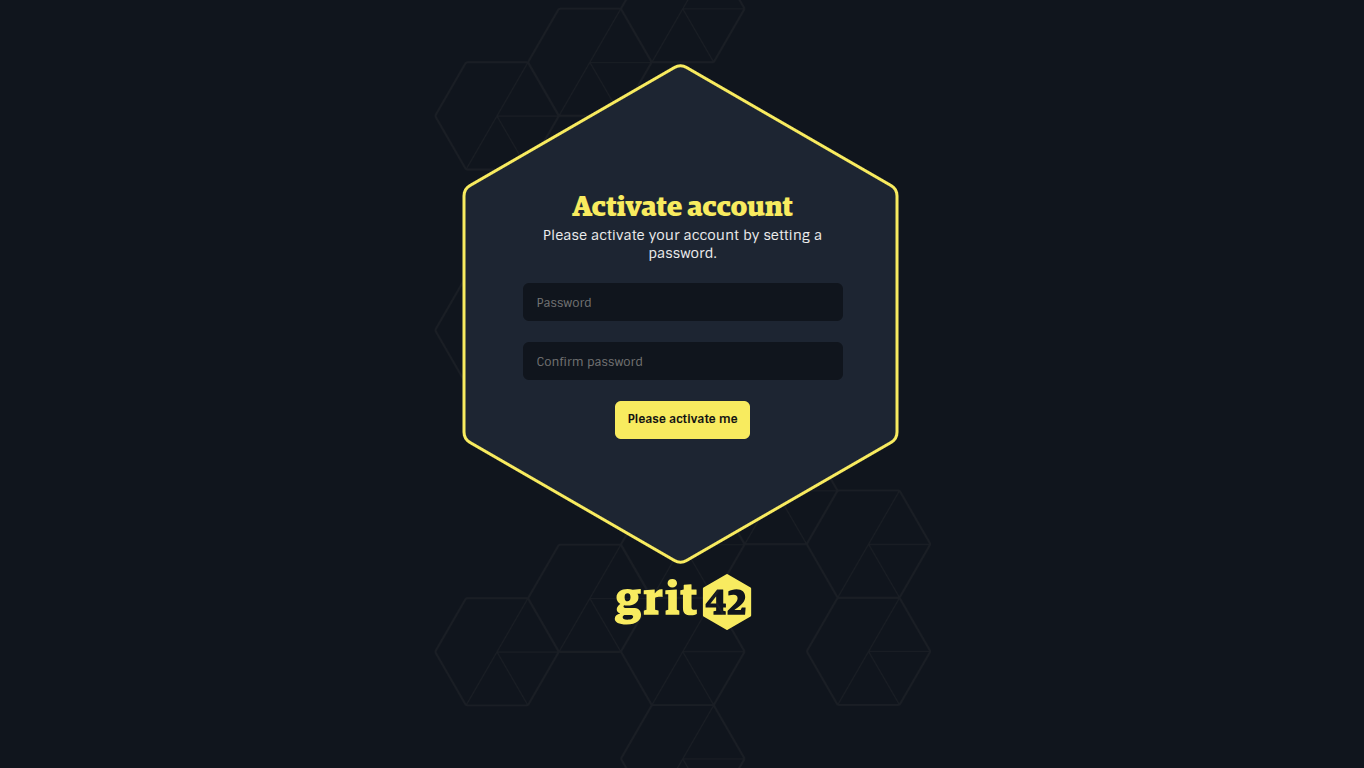
admin userWhen a new instance of grit is set up for the first time, the admin user must be activated in order to begin using the platform and registering other users. To activate the admin user, navigate to /app/core/activate/admin (e.g. http://localhost:3000/app/core/activate/admin when running the platform locally), and follow the procedure described above.
Authentication
To authenticate, navigate to any page of your grit instance (e.g. http://localhost:3000/ when running the platform locally). If the current session has expired, the browser will automatically redirect to the login screen at /app/core/authenticate (e.g. http://localhost:3000/app/core/authenticate when running locally).
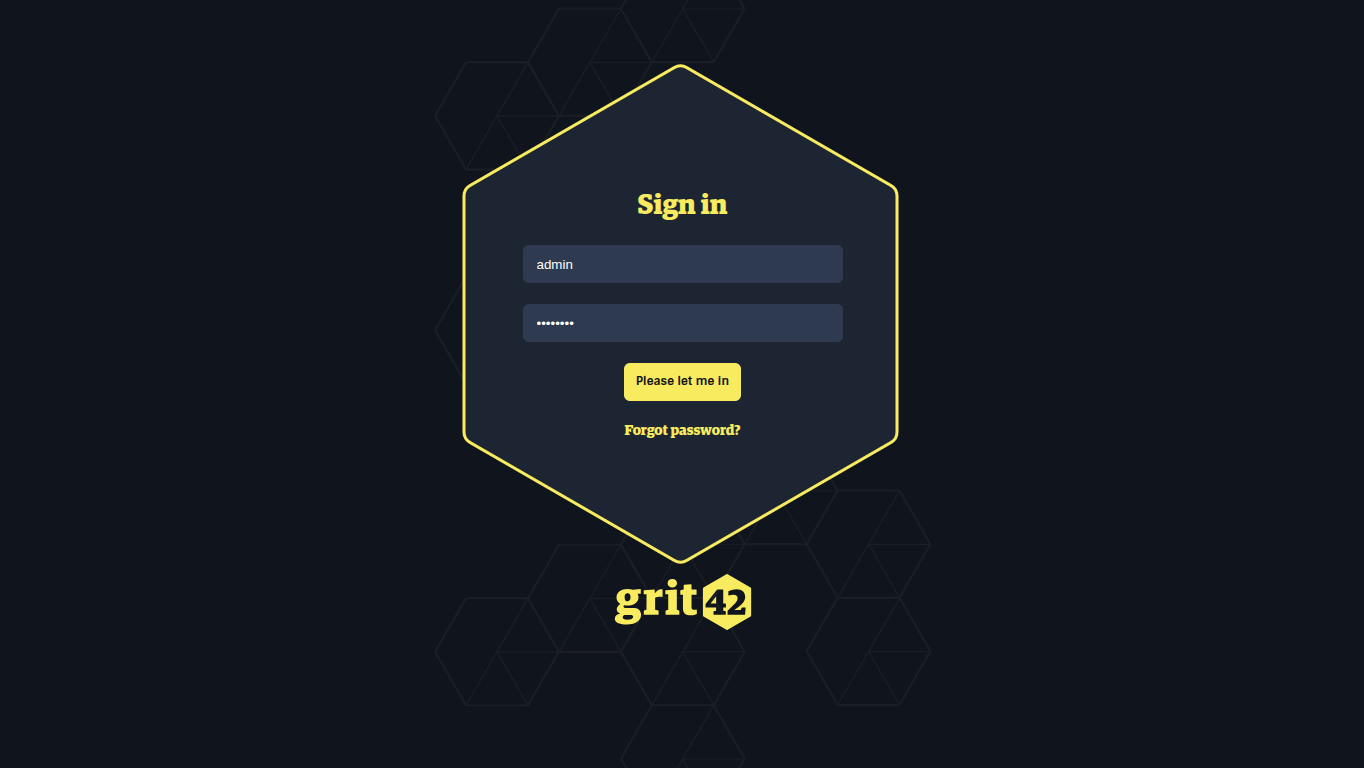
Fill in the login form with your email address (or login) and password, then click Please let me in. Once authenticated, the browser will redirect to the application's main page.
Two-Factor Authentication
If two-factor authentication is enabled for your account, an email will be sent to your registered email address containing a two-factor authentication token.
After successfully logging in with your password, you will be redirected to the two-factor authentication page, where you must enter the token from the most recent email to complete the login process. Once complete, the browser will redirect to the application's main page.
Forgotten password
If you have forgotten your password, click Forgot password? below the login form.
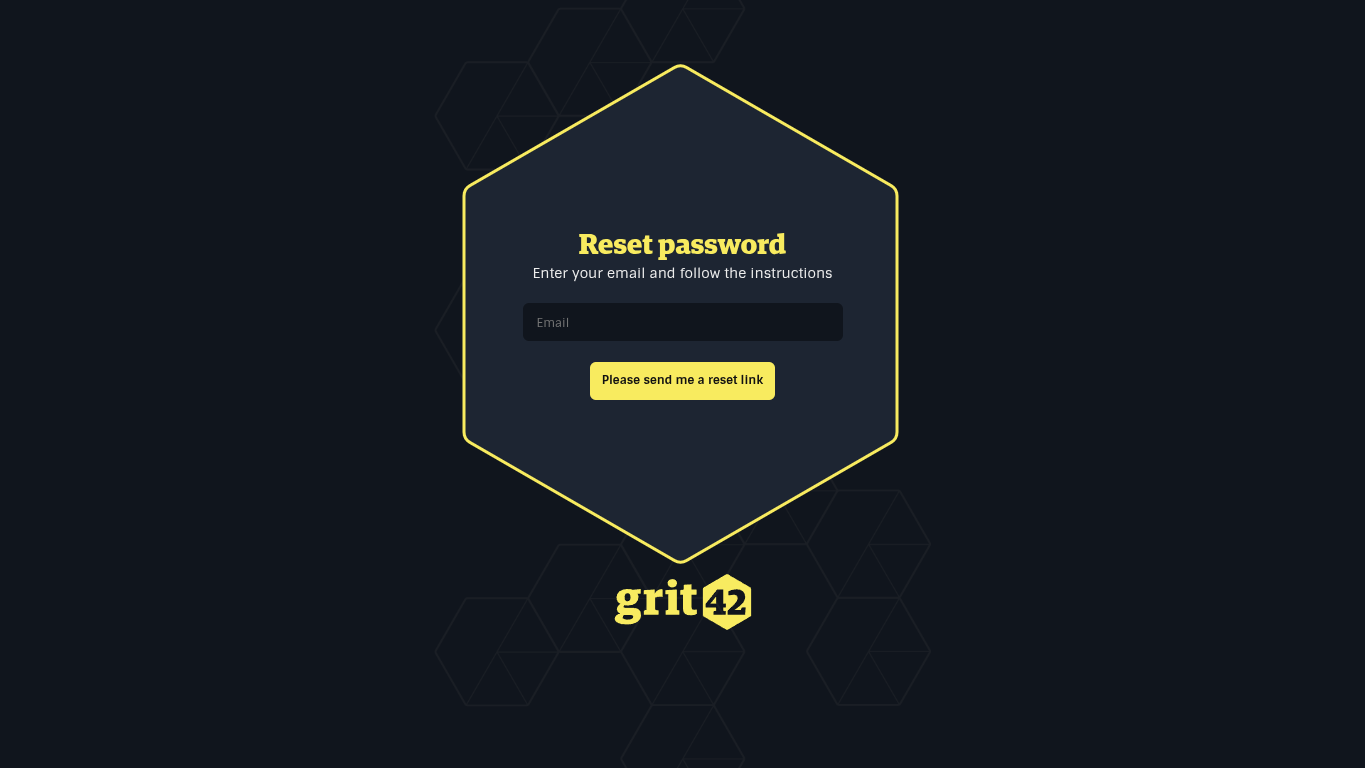
In the form, enter your registered email address and click Please send me a reset link. If the email address is found, an email containing a reset link will be sent. Open the reset link in a web browser. In the browser, fill in the form with the password of your choice and click Change password. Once the password is updated, the browser will redirect to the application's main page.
Multiple Failed Login Attempts
If you enter an incorrect password multiple times, your account will be locked and an email will be sent to you. You will not be able to log in until you set a new password using the link provided in the email.